
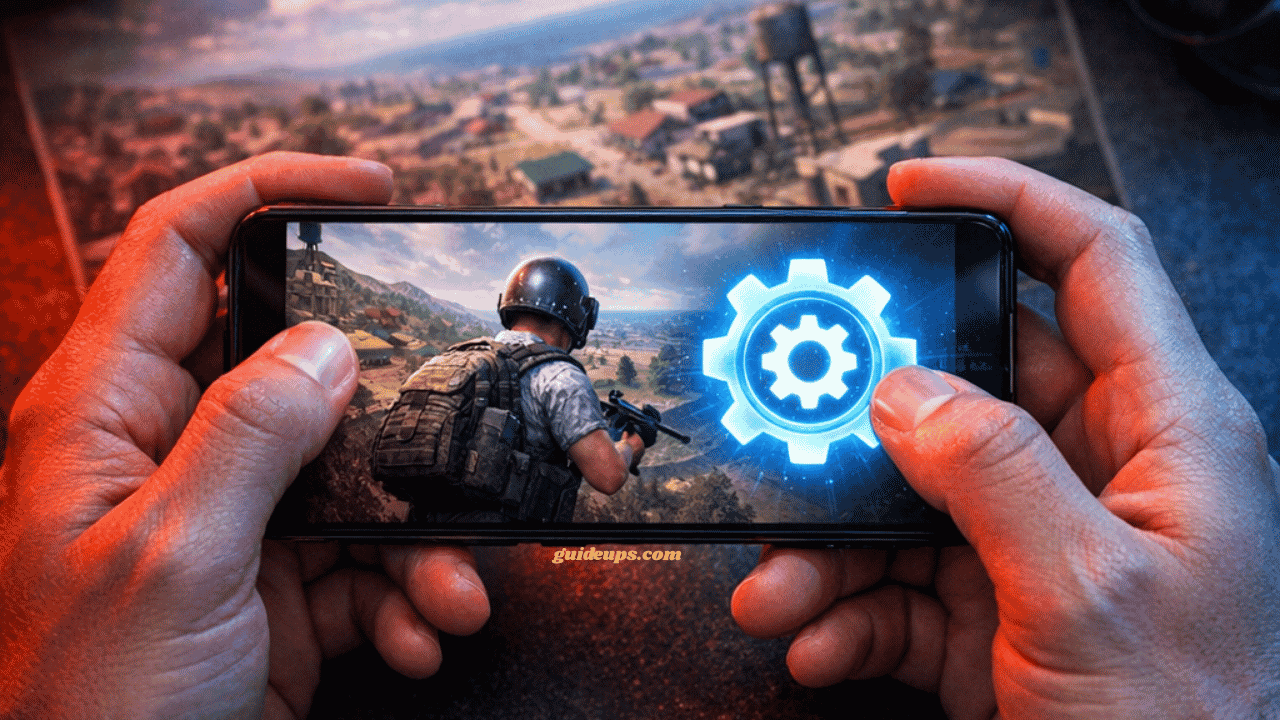
I remember the exact moment I decided to actually sit down and fix my PUBG Mobile settings. It was a ranked match on Erangel, final circle, and one other squad and I were left. I had the guy dead to rights: clear shot, decent cover, full health. I was fired. He crouch-spammed once; I missed two bullets thanks to my sensitivity being all over the place, and he downed me with a UMP in about 0.4 seconds.
That was three seasons ago. Since then I’ve spent an embarrassing amount of time obsessing over the best PUBG Mobile settings, testing on my own phone (a Xiaomi Redmi Note 13 Pro), my cousin’s iPhone 13, and a budget Samsung A-series. I’ve tested, broken things, reset to default in frustration, and slowly figured out what actually matters. This is everything I learned, written the way I wish someone had explained it to me.
If you’re also struggling with your Android device while gaming, check out our guide on How to Speed Up Android 15 Easily; it genuinely helps before you even open PUBG.
Table of Contents
Why Your Default Settings Are Probably Hurting You
Here’s the honest truth: PUBG Mobile’s default settings are built for new players who’ve never touched an FPS before. They’re forgiving, sluggish, and smooth great for your first ten matches and genuinely awful once you’re trying to win.
The two biggest default setting crimes are the following:
1. Camera sensitivity is too low. Default settings make turning feel like you’re moving through water. You’ll constantly lose fights because you can’t track a strafing enemy fast enough.
2. Gyroscope is either off or misconfigured. Most players either leave it completely off (missing a free accuracy boost) or turn it fully on and then wonder why their screen spins like a washing machine every time they breathe.
Let’s fix all of that, one section at a time.
Best PUBG Mobile Settings: Graphics First, Everything Else Second
Before touching sensitivity or controls, you need your game running smoothly. A perfectly tuned sensitivity means nothing if your game drops to 20fps in the final circle.
Go to Settings → Graphics.
Frame Rate: Set this to the highest stable option your phone supports, Ultra (90fps) or Extreme (60fps). If your phone gets hot quickly or stutters, drop one step. A stable 40fps beats an unstable 60 every single time.
Graphics Quality:
- Set to Smooth on mid-range or budget phones. Higher graphics give you zero competitive advantage; they just look prettier and drain your battery.
- On flagships (Snapdragon 8 Gen 3, A17 Pro, Dimensity 9400), Balanced works fine without much FPS cost.
Anti-Aliasing: Turn it off. Without anti-aliasing, enemy outlines at a distance appear slightly sharper and easier to spot. Competitive players universally turn this off.
Shadows: Set to off or the lowest possible. Shadows are beautiful and will drain your frames. Turn them off and don’t look back.
Style: Keep on Classic unless you prefer the high-contrast colorblind mode; some players actually find enemies easier to spot with it.
One thing that surprised me: after switching from Realistic to Smooth graphics, my phone ran noticeably cooler and my battery lasted longer per match. That alone made it worth it.
According to the official PUBG Mobile website, the game receives major patches every few weeks, so it’s always worth rechecking your graphics settings after a big update, as performance profiles can shift.
Best PUBG Mobile Settings: Sensitivity Explained
This is the section everyone rushes and then regrets. I’m going to give you real numbers, explain why they work, and tell you how to adjust them for your own style.
Go to Settings → Sensitivity.
Camera Sensitivity (No Scope)
This controls how fast your camera moves when looking around or hip-firing.
| View | Recommended Setting | Range to Try |
|---|---|---|
| TPP No Scope | 120–130 | 110–150 |
| FPP No Scope | 100–115 | 90–130 |
| Red Dot / Holo | 55–65 | 50–75 |
| 2x Scope | 45–55 | 40–60 |
| 3x Scope | 35–45 | 30–50 |
| 4x Scope | 25–35 | 20–40 |
| 6x / 8x Scope | 10–18 | 8–25 |
Key rule: Lower scope = lower sensitivity. This isn’t optional. If your 6x sensitivity is anywhere near your no-scope sensitivity, you literally cannot hold a stable shot at range.
Start in the middle of these ranges, play 5–10 matches, then adjust. Overshooting targets while scoped? Lower it. Turning feels sticky? Raise it.
ADS Sensitivity (Aim Down Sights)
Set ADS roughly 10–15% lower than your camera sensitivity for each scope level. This makes close-range fights snappier while keeping scoped shots manageable.
Gyroscope Settings: Use It, But Set It Up Right
The gyroscope lets you tilt your phone to fine-tune your aim. It sounds gimmicky until you realize that most top-ranked mobile players use it. When configured correctly, it gives you a significant accuracy edge in close and mid-range fights.
Go to Settings → Sensitivity → Gyroscope.
| Scope | Recommended Setting |
|---|---|
| No Scope | 200–250 |
| Red Dot / Holo | 160–180 |
| 2x | 120–140 |
| 3x | 90–110 |
| 4x | 70–85 |
| 6x+ | 30–50 |
Set Gyroscope to Always On, not “Scope On.” Scope limits the gyro to only when you’re aiming down sights, which cuts out a lot of its close-range usefulness.
The first few matches with Gyro will feel terrible. Your screen will wobble, and you’ll miss easy shots. Give it 15–20 matches before judging it. Once it clicks, you’ll never go back.
Mistake I made: I set gyro sensitivity too high, and my screen tilted every time I ducked physically. I was hiding behind cover and literally staring at the ground mid-fight. Took me way too long to figure out why.
Control Layout: Two Fingers vs Four Fingers
The default two-finger layout is fine for casual play. For serious ranked matches, you want at least a four-finger claw setup: both thumbs plus both index fingers resting on the screen edges.
Basic four-finger layout:
- Left thumb: Movement joystick (bottom-left, default)
- Right thumb: Camera + jump/crouch
- Left index finger: Fire button (mid-left screen edge)
- Right index finger: Scope / ADS (mid-right screen edge)
This lets you move and shoot simultaneously without your right thumb choosing between camera and firing. That split-second difference wins fights.
Go to Settings → Controls → Customize to reposition buttons. Make your fire button larger; it’s what you’ll tap under pressure.
It takes about a week to feel natural. By week two, you’ll wonder how you ever played with two fingers.
Audio Settings: The Most Underrated Section
Sound tells you someone is flanking before you see them. Don’t ignore this.
- Sound Effects: 100 (max)
- Music: 0 in-game music masks footstep sounds completely
- Voice Chat: Keep on for squad mode
- Use earphones/headphones whenever possible. PUBG Mobile footsteps are directional. A basic pair of earphones will tell you which direction an enemy is approaching from. This single change improved my survival rate more than any sensitivity tweak.
Common Mistakes That Kill Your Performance
Playing on battery saver mode. Your phone throttles CPU and GPU to save power. You’re essentially playing on a handicap. Either charge while playing or accept reduced performance.
Never rechecking settings after updates. PUBG Mobile patches can shift how sensitivity behaves. After any major update, spend 10 minutes in training mode confirming things still feel right.
Maxing out gyro sensitivity immediately. Everyone does this, hates gyro for a week, disables it forever, and misses out on one of the best free accuracy boosts in the game. Start low, build up.
Skipping the Training Grounds. After changing any sensitivity, go to Training Mode, not ranked. There are stationary and moving targets. Use them before going into a real match.
Copying pro player settings exactly. Pro players use high-end devices with 120Hz displays and play thousands of hours. Their sensitivity is locked into their muscle memory. Use their settings as a starting reference, not a copy-paste solution.
2026 Updates Worth Knowing
The 2026 update cycle brought a few meaningful changes:
- Ultra HD mode is now available on more mid-range devices; still skip it for competitive play
- Adaptive Gyroscope Calibration was added; it auto-corrects gyro drift. Enable it under Settings → Sensitivity → Gyro Calibration
- 120fps support expanded to Snapdragon 8 Elite and Dimensity 9400 devices if you have one of these, it’s now available in your frame rate options
Which Phones Handle These Best PUBG Mobile Settings in 2026?
If you’re on older hardware and still getting stutters after optimizing everything, the device itself might be the bottleneck. PUBG Mobile in 2026 runs best on phones with at least 6GB RAM and a mid-range or better chipset.
Good options without breaking the bank: Xiaomi Redmi Note 13 Pro, Samsung Galaxy A35, Realme 12 Pro. Anything older than 3–4 years will struggle with stable frame rates regardless of settings.
For more on squeezing performance out of your Android device, our Best Free AI Apps for Students 2026 guide also covers some tools that help monitor and manage phone performance in real time.
The Honest Summary
Settings matter, but they matter less than game sense, positioning, and decision-making. I’ve watched players on default settings consistently beat people with perfectly optimized setups, just because they knew where to rotate and when to hold still.
That said, bad settings are a real handicap. Getting the best PUBG Mobile settings dialed in removes the friction between what you intend to do and what actually happens on screen. After that, the improvement is entirely on you.
Start with graphics (stable FPS first), then sensitivity (mid-range values, adjust slowly), then gyro (turn it on, give it real time), then controls (four fingers when you’re ready). Change one thing at a time, test in training mode, and only move on when it feels right.
Good luck out there. Drop Pochinki if you want to test your patience.



2 Comments on “Best PUBG Mobile Settings Guide 2026: I Tested Everything So You Don’t Have To”