Last year I lost three months of work.
Not because my laptop died. Not because someone hacked me. Because I trusted a single USB drive, forgot it in a pocket, and it went through a full washing machine cycle. Everything on it, client documents, project files, and notes I’d built up over months, is gone. Completely unrecoverable.
The repair shop tried. They charged me for the attempt and handed it back in a bag.
After that I became slightly obsessive about cloud storage apps. I set up accounts on five different services, tested them properly across my Android phone, Windows laptop, and an old tablet, and figured out which free plans are actually worth using and which ones are basically useless after 20 minutes.
Here’s the honest breakdown.
First: What “Free” Actually Means in Cloud Storage
Before getting into specific apps, it helps to understand the game these services are playing.
Every cloud storage company offers a free tier for the same reason: to get you using their service, fill that free space up, and then upgrade you to a paid plan when you inevitably need more. That’s the business model. It’s not cynical; it works, and it means the free tiers are genuinely functional. They just have limits.
What varies between services:
How much free storage you get ranges from 2GB (Dropbox, nearly useless in 2026) to 20GB (MEGA, genuinely generous).
What counts toward your storage limit? This is the sneaky one. Google Drive gives you 15GB free, but that 15GB is shared across Google Drive, Gmail, and Google Photos. If your inbox has 8GB of old emails, you’ve already eaten more than half your storage without saving a single file.
Whether they can read your files most major services (Google, Microsoft, Dropbox) technically can access your files. A small number use zero-knowledge encryption, meaning even the company can’t see what you’ve stored.
Bandwidth limits some services, limiting how much you can download per month, even if your stored files are within the free limit. MEGA does this. Hit the limit and your files become inaccessible until the next month.
Keep all of this in mind as we go through the options.
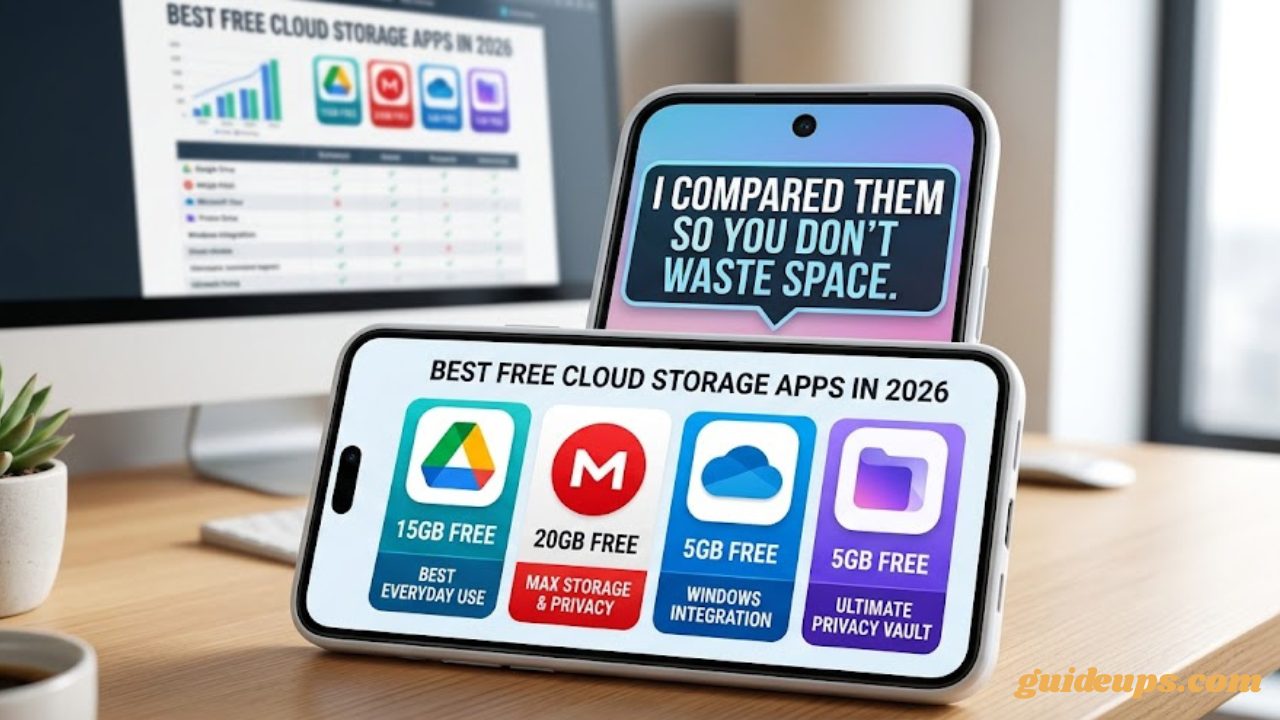
Google Drive: 15GB Free, Best for Everyday Use
Google Drive is the one most people already have on their Android phones. It comes pre-installed, ties into your Google account, and works seamlessly with Google Docs, Sheets, Gmail, and Google Photos.
The 15GB free storage is genuinely useful for most people unless you’ve been using Gmail for years and your inbox is already eating half of it.
What I actually use it for: Document storage, sharing files with other people (the sharing links work instantly and require no app install to view), and anything I’m actively working on that I need across multiple devices.
The thing most people don’t know: Files you create inside Google Docs, Google Sheets, or Google Slides don’t count toward your 15GB limit. They’re stored for free regardless. So if you use Google’s own apps to write and work, your storage goes much further than 15GB in practice.
The honest problem: Google Drive gives Google access to your files. The company’s terms allow them to scan content for their own purposes, including ad targeting and AI training. For most files this doesn’t matter. For sensitive personal documents, medical records, or anything private, it’s worth thinking about.
Best for: Anyone who lives in the Google ecosystem (Android phone, Gmail, Google Docs). The integration is frictionless in a way nothing else matches.
Free storage: 15GB (shared across Gmail and Google Photos)
MEGA 20GB Free, Best Raw Storage
MEGA gives you more free storage than any other mainstream service: 20GB right from the start, with no catches about file types or shared limits eating into it.
What sets MEGA apart beyond the storage size is security. It uses end-to-end, zero-knowledge encryption, which means your files are encrypted before they leave your device. Even MEGA’s own servers can’t read what you’ve stored. For privacy, this is significantly better than Google Drive, OneDrive, or Dropbox.
I use MEGA for files I genuinely don’t want anyone else to see, important documents, ID scans, and financial records. The peace of mind is worth the slightly less polished interface.
The honest limitation: MEGA has bandwidth throttling on free accounts. If you download a lot of files in a short period, say, if you’re restoring everything after a new phone, you can hit the monthly transfer limit and get locked out of your own files until the limit resets. For regular day-to-day use, this is rarely a problem. For heavy users or large file transfers, it’s frustrating.
The desktop app on Windows is solid. The Android app is functional but not as smooth as Google Drive. File sharing works well, though the encrypted sharing links can confuse people who aren’t tech-savvy.
One important thing: If you lose your MEGA password, you can lose access to your files permanently. Because of the zero-knowledge encryption, MEGA genuinely cannot recover your account the way Google can. Set up account recovery options when you create the account, and don’t skip this step.
Best for: Anyone who wants maximum free storage and cares about privacy. Great for personal documents you don’t want cloud companies reading.
Free storage: 20GB
Microsoft OneDrive: 5GB Free, Best for Windows and Office Users
OneDrive comes built into every Windows 10 and 11 computer, and it’s available as an Android app that works well enough. If you use Microsoft Office, Word, Excel, PowerPoint, or OneDrive, its integration is genuinely excellent. Documents save automatically to the cloud as you work.
The free tier gives you 5GB, which is honestly not much in 2026. A few folders of photos and you’re done.
Where OneDrive becomes compelling is through Microsoft 365. If you pay for Microsoft 365 Personal ($69.99/year), you get 1TB of OneDrive storage plus full Office apps. That’s genuinely good value if you need Office anyway. But as a pure free cloud storage option, 5GB is hard to recommend.
On Android: The OneDrive app works fine for accessing and uploading files. Camera roll backup is built in. But there’s no real reason to choose it over Google Drive on an Android phone unless you’re deeply tied to Microsoft services.
Best for: People who use Windows computers and already pay for Microsoft 365. Not the best choice purely for the free tier.
Free storage: 5GB
Proton Drive: 5GB Free, Best for Privacy-Focused Users
Proton Drive comes from Proton AG, the Swiss company behind ProtonMail, one of the most respected privacy-focused email services. Everything Proton makes is built around zero-knowledge encryption and is based in Switzerland, which has some of the strongest privacy laws in the world.
The free tier gives you 1GB for Proton Drive specifically, with 5GB total across your Proton account (shared with ProtonMail). That’s not much storage, but the privacy credentials are real and independently verified, not just marketing.
I set up Proton Drive for a specific folder of very sensitive files: passport scans, bank documents, and medical records. Things I need accessible from any device but absolutely do not want stored anywhere Google or Microsoft can scan them.
The Android app has improved significantly through 2025 and into 2026. It’s cleaner than it used to be, syncing works reliably, and photo backup was added to the app, which is a big practical improvement.
The limitation: 5GB total isn’t much. Proton Drive is best used for a specific category of important files, not as your main cloud storage for everything. Think of it as a highly secure vault rather than a general storage solution.
Best for: Privacy-conscious users, anyone storing sensitive documents, people who use ProtonMail and want a consistent privacy-first setup.
Free storage: 5 GB (shared across Proton account)
Dropbox 2GB Free, Mostly Skip It
Dropbox was the original cloud storage app. Back in 2010 it was genuinely revolutionary. In 2026, the free tier of 2GB is almost a joke. A couple of high-quality photos from your phone camera, and it’s full.
Dropbox’s strength is in its paid plans, which are excellent, fast, reliable, and work perfectly across every device and operating system. Businesses love it. The free tier, however, is not competitive with what Google Drive and MEGA offer.
The one thing Dropbox still does better than almost everyone: sync speed and reliability. Files sync faster and more consistently than competitors. If you’re paying, it’s worth it. If you’re looking for free storage, look elsewhere.
Best for: Teams and businesses on paid plans. Not recommended as a free option in 2026.
Free storage: 2GB
pCloud 10GB Free, Good Middle Ground
pCloud is less well-known than the big names but worth including. You get 10GB free to start, with opportunities to earn more through referrals and completing setup tasks (like installing the app and connecting social accounts). Some users have gotten up to 20GB free through these bonus tasks.
The interface is clean, and the Android app is well-made. Unique to pCloud: a built-in media player that streams video and audio directly from the cloud without downloading first. If you store movies or music, this is genuinely useful.
pCloud also offers something unusual: lifetime storage plans. A one-time payment gets you storage permanently without monthly fees. For people who hate subscriptions, this is compelling — though it’s the paid tier, not the free one.
The encryption caveat: Standard pCloud doesn’t have end-to-end encryption by default. They offer it as a paid add-on called pCloud Crypto. The base free account is encrypted in transit and at rest, but pCloud can technically access your files, similar to Google Drive.
Best for: General use, media storage, anyone who wants a Google Drive alternative with a cleaner interface.
Free storage: 10GB (can be extended to 20GB through setup bonuses)
How to Stack Free Storage Without Paying Anything
Here’s something most guides don’t mention: you don’t have to pick just one.
I use three cloud services for different things, and the combination gives me over 40GB of free storage across different categories:
Google Drive (15GB): Active working files, documents I share with others, anything that needs to be collaborative. Google Docs integration makes this the best choice for day-to-day work files.
MEGA (20GB): Photos, personal documents, anything I want encrypted and private. I back up my Android photo library here monthly.
Proton Drive (5GB): The vault. Only sensitive documents: IDs, financial records, and medical. Never more than 3-4GB but always encrypted.
Total: 40GB across three services, all free, each serving a specific purpose.
The key is intentionality. If you just pick one and dump everything in it, you’ll fill it up fast and feel limited. If you use each service for a specific category of files, the free tiers last much longer.
Common Mistakes People Make With Cloud Storage
Not actually backing up their phone. Cloud storage apps are installed on millions of phones that never have automatic backup enabled. The app is there; the backup isn’t happening. Go into your chosen app’s settings right now and turn on automatic camera backup if you haven’t. This is the whole point.
Letting Gmail eat the Google Drive limit. If you use Gmail and Google Drive, check how your 15GB is split. Go to one.google.com and look at storage usage. If Gmail is consuming 10GB of it, archive or delete old emails. Google offers a storage management tool that helps identify large emails to clear out.
Not setting up recovery options on MEGA. Covered above but worth repeating. Zero-knowledge encryption means if you lose your password, the files are gone. Set up the recovery key when you create the account; print it or save it somewhere safe.
Storing everything in one place. The USB drive lesson I learned the hard way applies to cloud storage too. If your only backup is Google Drive and Google ever has a serious outage, locks your account, or you lose access for any reason, you’re back to square one. Two services are the minimum. Three is comfortable.
Ignoring bandwidth limits. If you choose MEGA as your main storage and regularly download large files, you’ll hit the monthly transfer limit eventually. Plan for this if you’re restoring a lot of data; spread it over a few days rather than trying to download everything at once.
The Quick Decision Guide
You’re on Android and use Google services already: Start with Google Drive. It’s already there, and the integration is unbeatable.
You want maximum free storage: MEGA gives you the most (20GB) with strong encryption.
You care about privacy above everything: Proton Drive for sensitive files and MEGA for general private storage.
You use Windows and Microsoft Office: OneDrive makes sense if you’re on a paid Microsoft 365 plan. Skip it for free use only.
You want a clean alternative to Google Drive: pCloud is the best-looking and most pleasant to use.
You want the smartest setup: Google Drive for work files + MEGA for photos and private documents. You get 35GB free, covered across two reliable services, and you’re not keeping all your eggs in one basket.
The USB drive lesson cost me three months of work. Cloud storage, even just the free tiers, costs nothing and takes about ten minutes to set up properly.
Do it before you need it.
More Update: GUIDEUPS