I spent an embarrassing amount of time last Eid trying to find one good photo editing apps that didn’t want my credit card details after three saves.
We had some genuinely nice family photos with good lighting and everyone actually smiling at the same time, which, if you know my family, is basically a miracle. I wanted to clean them up a bit. Brighten a couple, fix the background on one where someone’s laundry was visible, and do a bit of color correction.
I tried four apps before I found one that let me do all of that without either slapping a watermark on the final image, limiting me to three exports a day, or throwing a subscription popup in my face every 90 seconds.
That experience sent me down a rabbit hole of testing photo editors properly. Not just opening them and tapping around for five minutes, but actually editing real photos, portraits, food shots, and outdoor scenery and seeing what each app genuinely delivers for free.
Here’s what I found.
Table of Contents
The Quick Reality Check About “Free” Photo Editors
Before anything else, this needs saying: a lot of photo editing apps advertise themselves as free and are technically free to download, but the moment you try to export your finished photo, save it in full quality, or use any tool that actually matters, they want a subscription.
Some of the worst offenders in 2026:
PicsArt free tier limits you to 3 saves per day. Three. If you’re editing more than three photos, you’re stuck.
Pixlr free tier is the same deal. 3 saves per day, plus ads between every action.
VSCO free tier, the basic tools are there, but most of the presets that make VSCO worth using are locked behind a $29.99/year plan.
I’m not saying these are bad apps. The paid versions of some of them are genuinely excellent. But if you want free that’s actually free, with no daily limits, no watermarks, and no paywalled exports, the list gets shorter fast.
The good news: the apps that are genuinely free are really, really good.
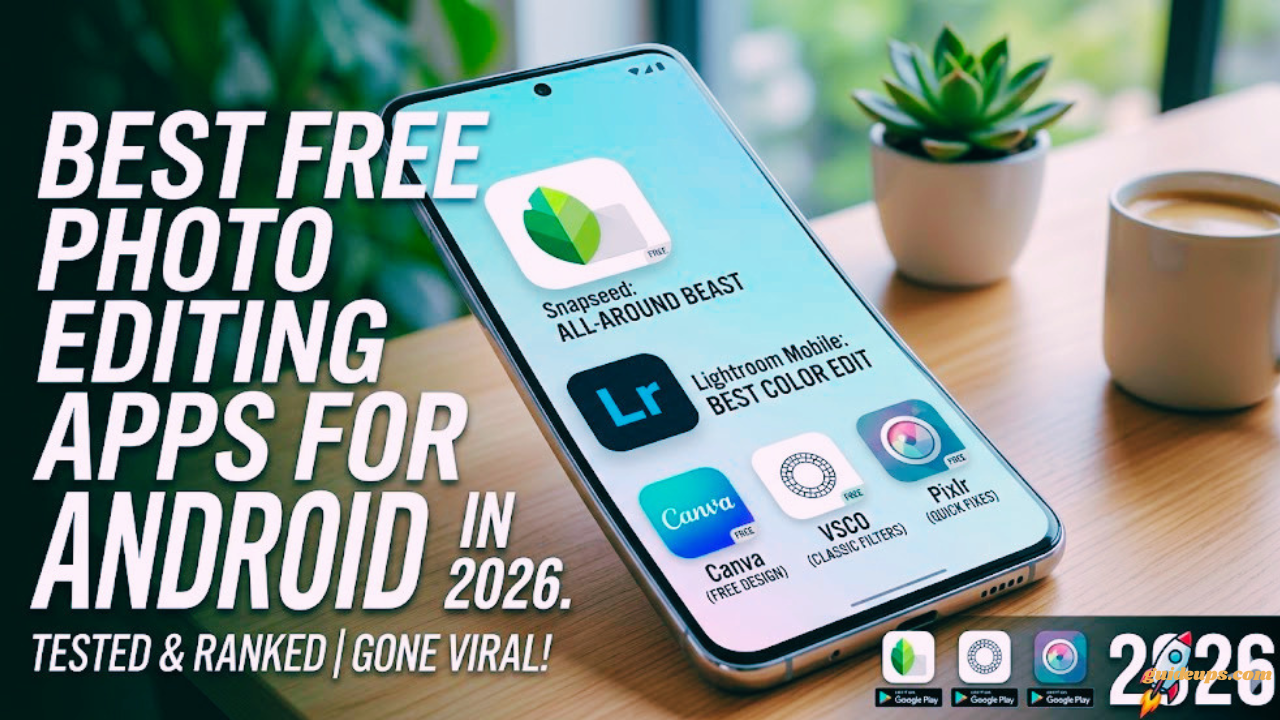
1. Snapseed Best Overall, No Competition
I’ll say it plainly: Snapseed is the best free photo editing app on Android. It has been for years, and in 2026 it still is, largely because Google has never added a subscription, never locked features behind a paywall, and never shown a single ad inside the app.
Everything is free. Every tool. Every filter. Every export. Forever.
That’s almost unheard of in 2026, and it’s the reason Snapseed is still the first app I install on any new Android phone.
What makes it genuinely powerful:
The Selective Adjust tool is the one that makes photographers fall in love with Snapseed. You tap on a specific area of your photo, say, a person’s face that’s slightly too dark, and drag up or down to adjust just that area’s brightness, contrast, or saturation without affecting the rest of the image. Most apps charge subscription fees for this level of precision.
The healing tool removes objects from photos. Tap on something you want gone, a bin in the background, a blemish on a portrait, or a stray wire across the sky, and Snapseed fills it in using surrounding pixels. It’s not perfect for complex removals, but for simple distractions it works extremely well.
RAW file support means if you shoot in RAW format on your phone or a camera, Snapseed can open and edit those files directly, giving you far more control than editing a compressed JPEG.
The Curves tool gives you precise control over brightness, contrast, and color channels the kind of tool you’d expect from desktop software.
When I edited those Eid photos:
I used Snapseed’s selective tool to brighten two faces that were in slight shadow. Using Healing to remove the laundry from the background of one photo took about 15 seconds. Applied the “Morning” look from Snapseed. Looks for a warm, clean feel across all of them. Exported everything in full quality. No popups. No paywalls. Done.
The honest limitation: Snapseed doesn’t have AI background removal or generative fill. Apps like Lightroom and PicsArt Pro have those now. If you need those AI features without paying, Snapseed isn’t the answer. For everything else, it’s unbeatable at the free price.
Best for: Anyone who wants professional-level editing tools at zero cost. Beginners and experienced editors alike.
2. Adobe Lightroom Mobile (Free Version) Best for Consistent Editing
Lightroom on mobile is a different kind of app from Snapseed. Where Snapseed is great for fixing individual photos, Lightroom is built for people who want a consistent look across everything they shoot.
The free version of Lightroom mobile is more generous than most people expect. You get:
- Full manual colour correction (HSL sliders, tone curve, colour grading)
- RAW file support
- Before/after comparison view
- Copy and paste edits from one photo to another
- Presets (a limited selection is free; more are paid)
- Healing brush for basic object removal
What’s behind the paid wall: AI masking tools, denoise (excellent for low-light photos), cloud sync across devices, and a larger preset library.
I’ve used the free version of Lightroom mobile for street photography edits on my Pixel 8. The color controls are genuinely excellent. Being able to target specific colors and adjust just the hue, saturation, and luminance of that color independently is the kind of thing that transforms a flat photo into something that looks deliberate.
The workflow difference: Lightroom encourages you to develop a style and apply it consistently. If you shoot a lot and want all your photos to feel cohesive, with the same warmth and the same contrast feel, Lightroom’s copy-paste edits feature makes this very fast.
One thing to note: Lightroom requires an Adobe account to use, even the free version. It’s free to create, but you do need to sign up.
Best for: People who take a lot of photos and want consistent color grading across their shots. Anyone interested in learning proper photo editing fundamentals.
3. Photoshop Express Best for Quick, Social-Ready Edits
Adobe Photoshop Express is the lighter, faster sibling of Lightroom. Where Lightroom is methodical and detailed, Photoshop Express is built for speed.
The free version includes one-tap filters, basic adjustments, crop and straighten, blemish removal, noise reduction, and a decent range of collage tools. It’s genuinely good for getting a photo Instagram-ready in under two minutes.
I used Photoshop Express to edit food photos when I was helping a friend set up a small home-catering social media page. The one-tap auto-enhance works surprisingly well on food; it pulls out colors and adds punch without making things look artificial. We’d take a photo, hit auto, make a small tweak to warmth, and post. Fast and effective.
What the free version doesn’t include: AI-powered background removal, the full filter library, and some advanced healing tools. These are in the paid tier.
No watermarks, no save limits on the free version, which already puts it ahead of PicsArt and Pixlr for casual use.
Best for: Social media content, quick edits, people who don’t want to spend much time on each photo.
4. VSCO Best for Film-Style Looks (With Caveats)
VSCO’s reputation is built entirely on its presets. The film-simulation filters, the ones that make photos look like they were shot on a 35mm camera from the 1970s, are genuinely beautiful and difficult to replicate in other apps.
The problem in 2026 is that VSCO has moved aggressively toward its paid subscription, and the free tier is noticeably thinner than it used to be. You get about 10 free presets. The other 200+ are behind the $29.99/year plan.
The basic editing tools (exposure, contrast, crop, sharpen) are free and work well. But if you’re downloading VSCO specifically for the aesthetic filter experience, you’ll hit the paywall quickly.
Where VSCO still wins for free users: The 10 free presets include some of their best ones. A4, A6, and HB2 are genuinely excellent for outdoor and portrait photography. If those styles work for you, VSCO’s free version is worth it.
I used VSCO’s free A6 preset on some outdoor photos, and the results were warm and natural and took about 30 seconds. For that specific look, nothing else free matches it quite as well.
Best for: People who have a specific film aesthetic they love and the free presets happen to cover it.
5. Canva Best When You Need More Than Just a Photo Edit
Canva isn’t a traditional photo editor; it’s a design tool. But it deserves a spot here because millions of people use it on Android for things that other editing apps can’t do: adding text to photos, creating social media graphics, making posters, and designing thumbnails.
The free version of Canva on Android is remarkably capable. You get thousands of templates, basic photo adjustment tools, text addition, and the ability to export without watermarks on most content.
I use Canva specifically when I need to combine a photo with text for a birthday card, a social media announcement, or a simple graphic for WhatsApp groups. For that use case, it’s the best free tool available on Android by a significant margin.
Where it falls short as a photo editor: The color correction and detailed editing tools in Canva are basic. If you want to do serious photo editing, you’ll use Snapseed or Lightroom for the edit and then bring the result into Canva if you need to add text or design elements.
Best for: Anyone creating social media graphics, posters, cards, or any photo that needs text and design elements added.
The Mistake I Made (And See Others Make) With Photo Editing Apps
Installing too many and using none properly. I had five photo editing apps on my phone at one point and was switching between them randomly based on which one I opened first. The result was inconsistent photos that looked like they were edited by different people, because in a way they were.
Pick one primary editor and actually learn it. Snapseed alone, used well, can do more than most people realize. Spend a week using just one app on every photo you take. You’ll get significantly better results than jumping between five apps.
Applying every available filter at maximum strength. The clarity slider was cranked to 100. The saturation was pushed to the limit. The sharpness maxed out. I went through this phase. The photos looked awful unnatural, garish, and over-processed. Good editing is mostly invisible. If people can tell your photo has been heavily edited, you’ve probably overdone it.
Not editing a copy of the original. Both Snapseed and Lightroom edit non-destructively, meaning they don’t overwrite your original photo. But some apps do, or they save over the original if you’re not careful about export settings. Always export to a new file rather than replacing the original, especially for photos you care about.
Expecting background removal to work perfectly on free apps. AI background removal on free apps is inconsistent. Hair, fur, and complex edges are particularly difficult. If background removal is something you need regularly, either accept imperfect results or look at paying for a tool that does it properly. Don’t waste time trying to fix a messy free background removal when other methods work better.
Which App Should You Actually Use?
For most people, this is the honest answer:
Start with Snapseed. It’s completely free, has no limits, covers 95% of what most people actually need to do with photos, and has no learning curve for basic edits. If you want more color control over time, add Lightroom Mobile’s free tier. Use them together: Snapseed for detailed fixes and Lightroom for color grading and consistency.
If you create social media content that includes text and graphics, add Canva for those specific situations.
If you love a film aesthetic and VSCO’s free presets happen to match what you’re after, use VSCO for that look.
You don’t need all five. Two apps used well will produce better results than five apps used randomly.
Those Eid photos, by the way, came out really well. My mum printed three of them and put them on the wall. Snapseed did all the work. Took about 12 minutes total for six photos. Not bad for something that cost nothing.
More Update: GUIDEUPS