My cousin plays Free Fire on a Tecno Spark 8 with 2GB RAM. Every time we squad up, I can hear him getting frustrated through the mic right in the middle of a fight. He’d be standing still while enemies rushed him because his phone had frozen for half a second.
He’s not a bad player. His settings were just completely wrong for his device. He was running standard graphics, had shadows turned on, and was using the same sensitivity settings he’d copied from some high-end phone YouTube video.
I sat with him on a call one evening, walked him through every setting one by one, and the difference was visible within the first match. He got three kills in his next game. On a 2GB RAM phone. No app downloads, no magic tricks, just the right configuration.
This is exactly what I walked him through and what works for any low-end device in 2026.
Table of Contents
First: Understand Why Your Phone Lags in Free Fire
Before touching any settings, it helps to understand what’s actually causing the lag.
Free Fire is not a particularly heavy game; that’s literally its selling point over PUBG Mobile. It was designed to run on lower-end devices. But “designed to run” doesn’t mean “runs well with default settings. ” The default settings are usually set to something in the middle, not optimized for low-end phones at all.
On a low-end phone (2GB to 4GB RAM, entry-level or budget chipset), three things cause most of the lag:
Too many things rendering at once: shadows, detailed textures, weather effects, and bloom lighting. These eat GPU resources that your phone simply doesn’t have enough of.
Frame rate instability: your phone trying to hit 60FPS and only managing 25-30FPS inconsistently. Inconsistent FPS feels worse than a stable lower FPS. A locked 40FPS feels smoother than 60FPS that keeps dropping to 20.
Touch response delay: When your phone is already struggling to render the game, there’s a delay between your finger moving and the game responding. Higher sensitivity numbers help compensate for this on slow devices.
Fix these three things and your game becomes playable even on hardware that looks like it shouldn’t be running Free Fire.
Step 1: Graphics Settings The Most Important Part
Open Free Fire settings (gear icon, top right). Graphics
Set every option exactly like this:
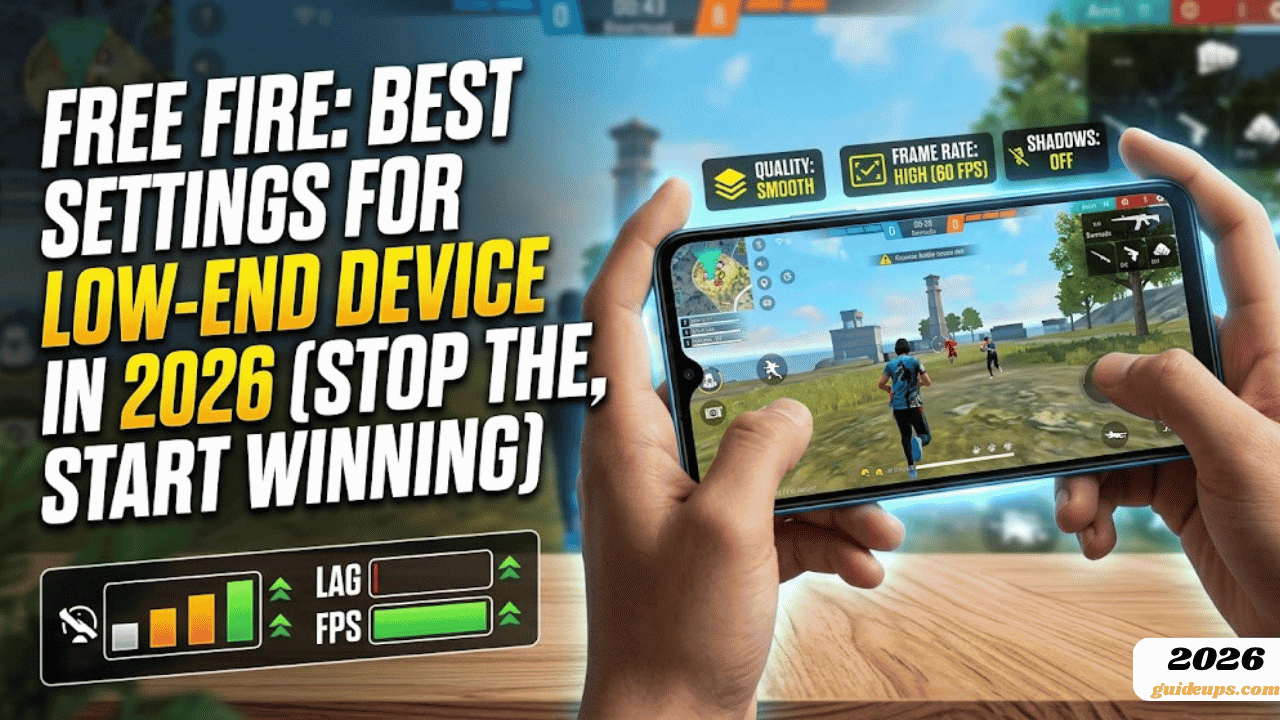
Graphics Quality: Smooth
This is non-negotiable for low-end devices. Smooth strips out the heavy visual details and lets your phone focus entirely on running the game at a stable frame rate. Yes, it looks less pretty. No, it doesn’t matter; you can’t win fights you can’t see because of lag.
Frame Rate: High (60FPS)
Wait, shouldn’t lower FPS be better for weak phones? Actually no. Set it to high and let the game try for 60FPS. Paired with smooth graphics, most low-end phones can hold 45-60 FPS consistently. Setting it to Medium (30FPS) often causes more inconsistency, not less.
If your phone still stutters badly after setting High, then drop to Medium. But try High with smooth graphics first.
Shadows: OFF
Turn shadows completely off. Shadows are one of the most GPU-intensive features in any game. On a low-end phone, disabling them alone can add 10-15 stable frames. This is a bigger improvement than most people realize.
Auto-Adjust Graphics: OFF
This setting sounds helpful, but it’s not. It changes your graphics quality dynamically mid-game, which causes sudden frame drops at the worst possible moments like in the middle of a gunfight. Turn it off and keep everything manually controlled.
HD Resolution: OFF (if available on your device)
Some newer builds of Free Fire show this option. Turn it off on low-end devices.
Colour Filter: None or Soft
Some color filters add a processing overhead. Keep it off or on the lightest option.
Step 2: Sensitivity Settings for Low-End Phones
Go to Settings > Sensitivity
Low-end phones have slower touch response and input lag. To compensate, you need slightly higher sensitivity values than what mid- or high-end phones use. Higher sensitivity means the camera moves more per millimeter of finger movement, so even when the game is slightly delayed, your aim still covers ground quickly.
Here are the settings I set up for my cousin’s Tecno Spark 8, and that I’d recommend for any 2-4GB RAM device:
| Setting | Value |
| General | 100 |
| Red Dot | 90 |
| 2x Scope | 80 |
| 4x Scope | 72 |
| AWM Scope | 50 |
| Free Look | 90 |
Why these numbers specifically:
General at 100 makes camera movement fast during open movement and rushing. On a laggy phone, slower general sensitivity means you turn too slowly when enemies flank you.
A red dot at 90 is the sweet spot for close- to mid-range fights without scopes. Too high and you flick past enemies. Too low and you can’t drag headshots before your phone stutters.
The AWM scope stays low at 50 because sniper shots need precision, and even on a laggy phone, lower scope sensitivity gives you more control for that one carefully aimed shot.
Important: These are a starting point, not a final answer. After applying them, spend 10-15 minutes in the training ground shooting at targets before jumping into a ranked game. Adjust by 3-5 points at a time if something feels off. Don’t make big jumps.
Step 3: Control Layout Settings
Go to Settings Controls
Fire Button Size: Set to Large
On a low-end phone where you have less precise control due to lag, a larger fire button gives you a bigger tap target. Fewer missed taps in a gunfight means more bullets actually firing.
Aim Assist: ON
Turn aim assist on. On higher-end devices, competitive players sometimes turn it off because it can interfere with drag shots. On low-end devices with input lag, aim assist gives you a small but meaningful correction that compensates for delayed touch response.
Auto Sprint: ON
Less things to manually tap means fewer things that can go wrong with a laggy phone. Auto sprint handles one button for you.
Gyroscope: OFF (for most low-end phone users)
Gyroscopes can improve aim on mid- and high-end devices with fast processors. On low-end phones, the gyroscope data processing adds overhead and can actually increase lag. Turn it off unless your phone handles it smoothly; you’ll know immediately if it causes stutter.
If you want to try it, set it to Scope On only (activates only when you’re scoped in) rather than Always On.
Step 4: Outside the Game: Phone-Level Optimisations
The in-game settings are only half the equation. What’s happening on your phone while you play matters just as much.
Close everything before launching Free Fire.
Go to your recent apps and close every single app. Don’t just minimize them; actually close them. On a 3GB RAM phone, WhatsApp, Chrome, and YouTube running in the background can eat 700MB-1GB of RAM before you’ve even opened the game. Free Fire needs as much RAM as possible.
Turn on your phone’s Game Mode or Gaming Mode.
Almost every Android phone in 2026 has this: Samsung has Game Booster, Xiaomi has Game Turbo, Tecno and Infinix have their own versions. Find it in your phone’s settings or notification panel. This mode prioritizes the game’s CPU and GPU access, blocks notifications during play, and prevents background apps from reclaiming RAM.
On my cousin’s Tecno Spark 8, turning on Game Mode before launching Free Fire added a noticeable improvement in smoothness; it’s not just a gimmick.
Keep your phone cool.
Heat is the number one performance killer on budget Android phones. When a phone overheats, the processor throttles itself to cool down; this is called thermal throttling, and it’s why your game that was running fine at the start of a match starts stuttering badly 20 minutes in.
Play somewhere with air flow. Don’t cover the back of the phone with a thick case during gaming if you can help it. If your phone gets hot, take a five-minute break between matches. It genuinely helps.
Keep storage above 15% free.
When phone storage gets too full, the system has trouble using it as virtual RAM when needed. Delete old photos, unused apps, and downloaded videos. Keep at least 2-4GB of internal storage free.
Delete the game cache regularly.
Go to Settings Apps Free Fire Storage Clear Cache. Do this once a week if you play regularly. The cache builds up and can cause stuttering, especially after major game updates. This is not the same as clearing data (which would reset your settings) cache only.
Step 5: Network Settings Fixing Ping on Low-End Phones
Lag in Free Fire has two causes: frame rate issues (fixed above) and high ping (network lag). High ping makes enemies teleport, your shots not register, and the game feel like you’re playing through jelly.
Use WiFi over mobile data whenever possible.
Mobile data ping in Free Fire is typically 80-150ms. Good WiFi ping is 20-50ms. That difference is enormous in a game where fights last two seconds.
Select the right server.
In Free Fire’s settings, you can see your current server and ping. Make sure you’re connected to the server closest to your location. For Pakistani players, the India server or Middle East server typically gives the lowest ping depending on your ISP.
Turn off downloads and other devices using WiFi while playing.
If someone else in the house is streaming a movie or downloading something while you play, your ping spikes. Ask them to pause or play when the network is less busy; late at night often gives the most stable connection.
Switch to 5GHz WiFi if your router supports it.
Most newer routers broadcast both 2.4GHz and 5GHz bands. The 5GHz band is faster and less congested by other devices. Go into your WiFi settings and connect to the 5GHz version of your home network if available. It makes a real difference.
The Mistake My Cousin Was Making (And Most Low-End Players Make)
He had copied sensitivity settings from a YouTube video titled “Best Pro Sensitivity Settings 2026. ” The creator was playing on a Snapdragon 8 Gen 2 phone with 12GB RAM and a 144Hz display.
Those settings made zero sense on a 3GB Tecno Spark. Higher-end phones with fast processors and high refresh rate screens need lower sensitivity because every millimeter of swipe is so accurately tracked. Low-end phones need higher sensitivity to compensate for slower response.
Using someone else’s settings without understanding your device is the single most common mistake Free Fire players make.
Other common mistakes on low-end devices:
Leaving Auto-Adjust Graphics on. This changes quality mid-match and causes those sudden freezes everyone complains about.
Not closing background apps. Leaving WhatsApp, Instagram, and Chrome open and expecting Free Fire to have enough RAM is like trying to sprint with a backpack full of bricks.
Changing too many settings at once. If you change 10 things at once and the game improves, you don’t know which changes helped. Change one or two things, play a match, evaluate, then adjust again.
Giving up after one match. New sensitivity settings feel wrong for the first 2-3 matches because your muscle memory is adjusted to the old settings. Give it at least a day before deciding something doesn’t work.
Quick Settings Summary for Low-End Devices (Save This)
Graphics:
- Quality: Smooth
- Frame Rate: High
- Shadows: Off
- Auto-Adjust: Off
- HD Resolution: Off
Sensitivity (2-4GB RAM phones):
- General: 100
- Red Dot: 90
- 2x Scope: 80
- 4x Scope: 72
- AWM Scope: 50
- Free Look: 90
Controls:
- Fire Button: Large
- Aim Assist: On
- Auto Sprint: On
- Gyroscope: Off
Phone:
- Game Mode: On
- Background apps: Closed
- Storage free: 2GB+
- Cache: Cleared weekly
What My Cousin’s Game Looks Like Now
He’s not dropping Booyahs every match; let’s be real, settings don’t replace skill. But the lag that used to decide his fights before he could react is mostly gone. His phone runs at a stable 40-50FPS through most matches. He doesn’t freeze in gunfights anymore. He can actually see enemies moving smoothly enough to aim properly.
He upgraded nothing. Same phone, same internet connection, same player. Just the right settings for the actual device he has.
If your phone is capable of running Free Fire at all, these settings will get the most out of it. The game was built for low-end devices; you just have to tell it that’s what it’s running on.