It happened on a Tuesday morning, right before an important presentation.
I opened my phone to pull up a document I had saved in a third-party file manager app. The app launched, showed me a loading screen I had never seen before, and then greeted me with a completely redesigned interface. Everything was in the wrong place. The folder I needed was gone, not deleted, just buried under a new layout I had never used.
The app had auto-updated overnight. The developers had completely overhauled the UI in version 4.0. My carefully organized folder structure still existed, but finding it in the new design took me twelve minutes I did not have.
I turned off auto updates that same evening and have never turned them back on.
Table of Contents
Why Auto-Updates Are Not Always a Good Thing
I know what you are thinking. Updates are good, right? Security patches, bug fixes, and new features. And yes, in theory, keeping apps updated is smart.
But here is the reality nobody tells you.
Developers push updates on their own schedule, not yours. An update that drops at 2am on a weekday can completely change an app you rely on. It can introduce new bugs while fixing old ones. It can eat 200MB of your mobile data without asking. And on budget Android phones, the kind most of us actually use, a background update session can slow your phone to a crawl at the worst possible moment.
I have had WhatsApp update itself mid-conversation and restart the app. I have had a game update wipe my local settings. I have had my phone burn through 600MB of data in a single night because the Play Store decided that was a good time to refresh twelve apps at once.
Turning off auto-updates does not mean your apps never get updated. It means you decide when they update. That is all.
Before You Start: Two Minutes of Useful Context
Android updates apps through two main channels, and most people only know about one.
The first is the Google Play Store; this handles almost every app you have downloaded yourself. This is the main setting you need to change.
The second is your phone’s own app store if you use a Samsung, Xiaomi, Realme, or another brand with its own store. Samsung has the Galaxy Store. Xiaomi has GetApps. These update certain brand-specific apps separately from the Play Store.
If you only change the Play Store setting and ignore your manufacturer’s store, you will still get background updates for some apps. I made this mistake for three months before figuring out why my Samsung kept updating certain pre-installed apps automatically.
We will cover both.
Method 1: Turn Off Auto-Updates in the Google Play Store
This is the main one. Do this first.
Step 1: Open the Google Play Store app. It is the multicolored triangle icon, usually on your home screen or in your app drawer.
Step 2: Tap your profile picture in the top-right corner of the screen. A menu will appear from the bottom.
Step 3: Tap Settings from that menu.
Step 4: On the Settings page, find the section called Network Preferences and tap it.
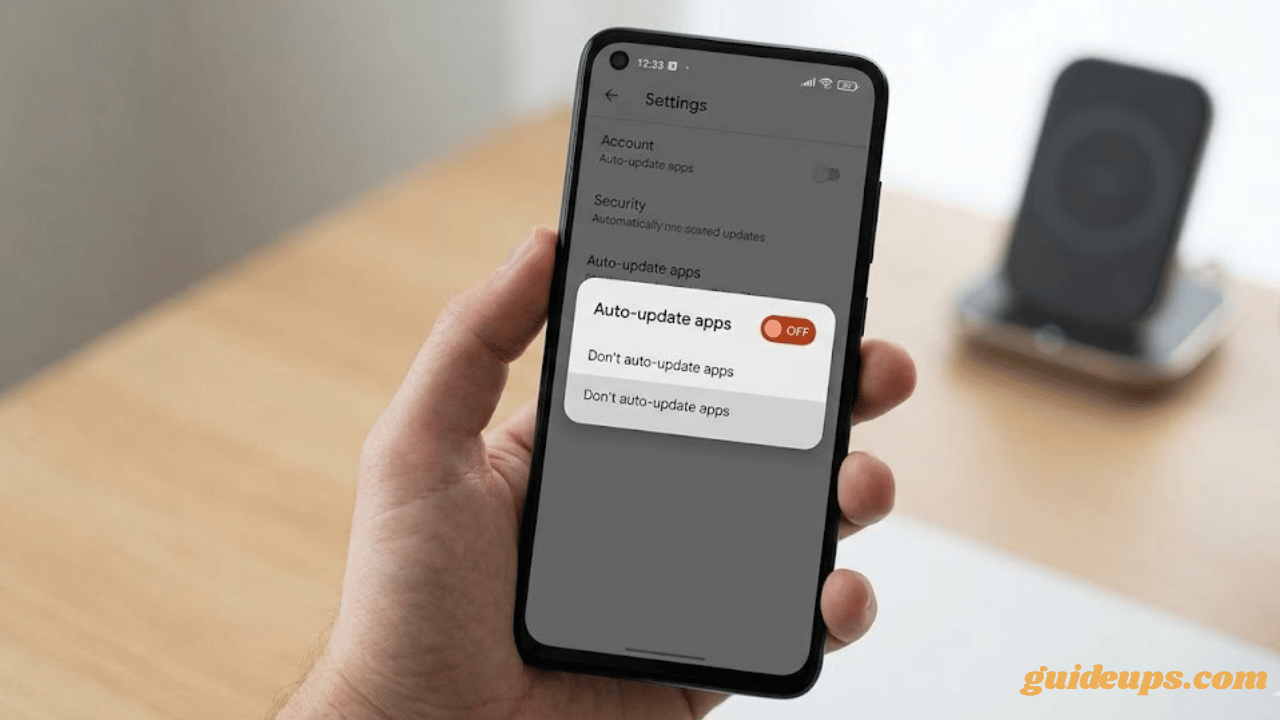
Step 5: Tap Auto-update apps.
Step 6: You will see three options:
- Over any network
- Over Wi-Fi only
- Don’t auto-update apps
Step 7: Select Don’t auto-update apps and tap OK.
Done. The Play Store will no longer download or install any app updates in the background.
You will still see update notifications, a small badge on the Play Store icon, or a notification telling you updates are available. But nothing will happen until you go in and approve it manually.
The “Wi-Fi Only” Option: A Good Middle Ground
If completely turning off auto-updates feels too extreme, the “Over Wi-Fi only” option is genuinely worth considering.
This stops the Play Store from using your mobile data for updates, which is usually the actual problem for most people, while still letting updates download automatically when you are on Wi-Fi at home.
I used this setting for about a year before switching to full manual updates. For most people on a limited mobile data plan, this single change makes an immediately noticeable difference in your monthly data usage.
Method 2. Stop a Single App From Auto-Updating
Sometimes you do not want to turn off all updates. You just want one specific app to stay on its current version.
A game that is working perfectly. A productivity app with an interface you have memorized. A social media app whose new update everyone is complaining about.
Here is how to freeze just that one app:
Step 1: Open the Google Play Store.
Step 2: Search for the app by name and tap on it to open its store page.
Step 3: Tap the three-dot menu (⋮) in the top-right corner of that app’s page.
Step 4: You will see a checkbox that says Enable auto-update.
Step 5: If it is checked, tap it to uncheck it. The app will now never auto-update, even if you have auto-updates turned on globally for everything else.
I do this for two apps specifically: my banking app (which once updated and broke fingerprint login for a week) and a note-taking app whose older version I genuinely prefer. Both have been frozen on their current versions for months with zero issues.
Method 3: Samsung Galaxy Store (For Samsung Users)
If you use a Samsung phone, you have two app stores running in the background. The Play Store and the Galaxy Store.
The Galaxy Store handles Samsung-exclusive apps, Good Lock modules, Samsung themes, and a handful of other apps that Samsung manages directly. If you only change the Play Store setting, the Galaxy Store will keep auto-updating its own apps independently.
Here is how to fix that:
Step 1: Open the Galaxy Store app. It has a dark blue shopping bag icon, usually in your app drawer if not on your home screen.
Step 2: Tap the three-line menu at the bottom right of the screen.
Step 3: Tap Settings.
Step 4: Find app updates and tap Auto update apps.
Step 5: Select Off or Wi-Fi only if you prefer the middle-ground approach.
One thing worth noting is that if you use Good Lock (Samsung’s customization toolkit), some Good Lock modules update through the Galaxy Store. Turning this off means you will need to manually update those modules. Not a big deal, just something to be aware of.
Method 4: Xiaomi / Redmi / POCO Users (GetApps Store)
Xiaomi phones running MIUI or HyperOS have their own app store called GetApps. Same situation as Samsung; it runs parallel to the Play Store and auto-updates certain apps on its own schedule.
Step 1: Open the GetApps app. It is usually pre-installed and sits in your app drawer.
Step 2: Tap your profile icon in the top-right corner.
Step 3: Tap Settings.
Step 4: Find “Auto-update” or “App updates” and toggle it off.
While you are in MIUI or HyperOS settings, you can also stop the system from auto-downloading software updates:
Go to Settings → About Phone → MIUI/HyperOS version → tap the gear icon → turn off Auto-download.
This stops Android system updates from downloading silently in the background. You will still get notified when updates are available; you just choose when to download and install them.
Method 5: Block All Background Downloads Completely
This is the most aggressive option, and I only recommend it if you are on an extremely tight data plan or if your phone is very low on storage.
You can restrict the Play Store from downloading anything at all in the background even if auto-updates are turned on by cutting off its background data access.
Step 1: Go to Settings on your phone.
Step 2: Tap Apps (some phones call it “App Management” or “Installed Apps”).
Step 3: Find and tap Google Play Store in the list.
Step 4: Tap Data usage.
Step 5: Toggle on Restrict background data.
With this enabled, the Play Store can only access the internet when you are actively using it. No background downloads, no silent updates, nothing. It is completely dormant until you open it yourself.
The tradeoff is that update notifications will also stop coming through, since the Play Store cannot check for updates in the background either. You will need to open it manually and tap Manage apps & device to see what needs updating.
How to Update Apps Manually (Now That Auto-Updates Are Off)
Turning off auto-updates creates one small responsibility: you need to check for updates yourself every now and then. Here is the fastest way to do it.
Step 1: Open the Google Play Store.
Step 2: Tap your profile picture in the top-right corner.
Step 3: Tap Manage apps & device.
Step 4: Tap the “Updates available” tab.
Step 5: You will see every app with a pending update. Tap “Update all” to do them all at once, or tap individual apps if you want to be selective.
I do this every Sunday on Wi-Fi. Takes about three minutes. I scroll through the list, check if anything looks suspicious or if there is an update for an app I am currently happy with, and then update everything else.
It sounds like extra work. In practice it is three minutes a week, and I have never once regretted it.
Mistakes I Made That You Should Skip
Changing only the Play Store and ignoring the manufacturer store. I have mentioned this already, but it is worth repeating because it caught me completely off guard on my first Samsung phone. Both stores need to be changed.
Forgetting to update security-sensitive apps. I got so comfortable with manual updates that I went two months without checking, and my banking app was sitting three versions behind with a known login bug that had been patched. Check at least every two weeks for apps that handle your money, passwords, or personal data.
Turning off updates right before a long trip. I once disabled auto-updates, went on a trip for three weeks, and came back to find 47 pending updates waiting for me. Doing 47 app updates all at once on mobile data is exactly as painful as it sounds. Either update everything before a long break or temporarily switch to Wi-Fi-only mode.
Assuming “Don’t auto update” means apps stop working. A few people I have helped with this thought turning off auto updates would somehow break their current apps. It does not. Your apps stay exactly as they are right now. Nothing changes except that they stop silently downloading new versions.
Which Setting Is Right for You?
Here is the honest version:
If you are on a limited data plan, turn off auto-updates completely and check manually once a week.
If data is not a concern but you hate surprise UI changes, set it to Wi-Fi only. You will still get updates, just slower and only at home.
If there is one specific app you never want to change, freeze it individually using Method 2 and leave everything else on auto.
If you are on a Samsung or Xiaomi, change both the Play Store AND the manufacturer store. Otherwise, you are only solving half the problem.
One Last Thing
After I turned off auto-updates that evening following the presentation disaster, I went back and manually updated the file manager app a month later once I had time to actually read what had changed in the new version and prepare for it.
The new interface was actually decent once I knew what to expect. But the difference was that I chose when to deal with it.
That is really all this is about. Not avoiding updates. Just being in charge of your own phone.
Related articles on GuideUps: