My younger brother came to me last Zabi holding his old PSP game disc like it was a holy relic.
“Can I play this on my phone somehow?”
The game was God of War: Chains of Olympus. He had played it as a kid on his actual PSP before the device stopped turning on sometime around 2019. The disc had survived. The hardware had not.
I told him yes and then spent the next three hours figuring out exactly how, because I had not set up an emulator for Android in over two years, and things had changed more than I expected.
That rabbit hole is what this article is about. I tested six different Android emulators over the following weeks on a Redmi Note 12, a Samsung Galaxy A34, and an older Tecno Camon 16. Some worked beautifully. Some crashed constantly. One refused to even open a ROM without a specific BIOS file that took me forty minutes to track down legally.
Here is everything I found, written the way I wish someone had written it for me.
Table of Contents
First, Let Me Clear Up the Legal Part (Because Everyone Asks)
Before anything else, emulators are legal. The software itself, PPSSPP, RetroArch, and Dolphin, all of it, is completely legal to download and use.
The tricky part is ROMs, the game files themselves. If you own the physical game, dumping that game to a ROM file for personal use sits in a legal grey area in most countries. Downloading ROMs for games you do not own is copyright infringement.
I am not going to tell you what to do with that information. What I will say is that for the purposes of this article, every game I tested was either a game I owned physically, a game released as freeware, or a homebrew title made specifically for emulation. There are plenty of legitimate ways to get game files legally and plenty of homebrew communities making new content for old hardware.
Alright. With that out of the way, let us get into the actual emulators.
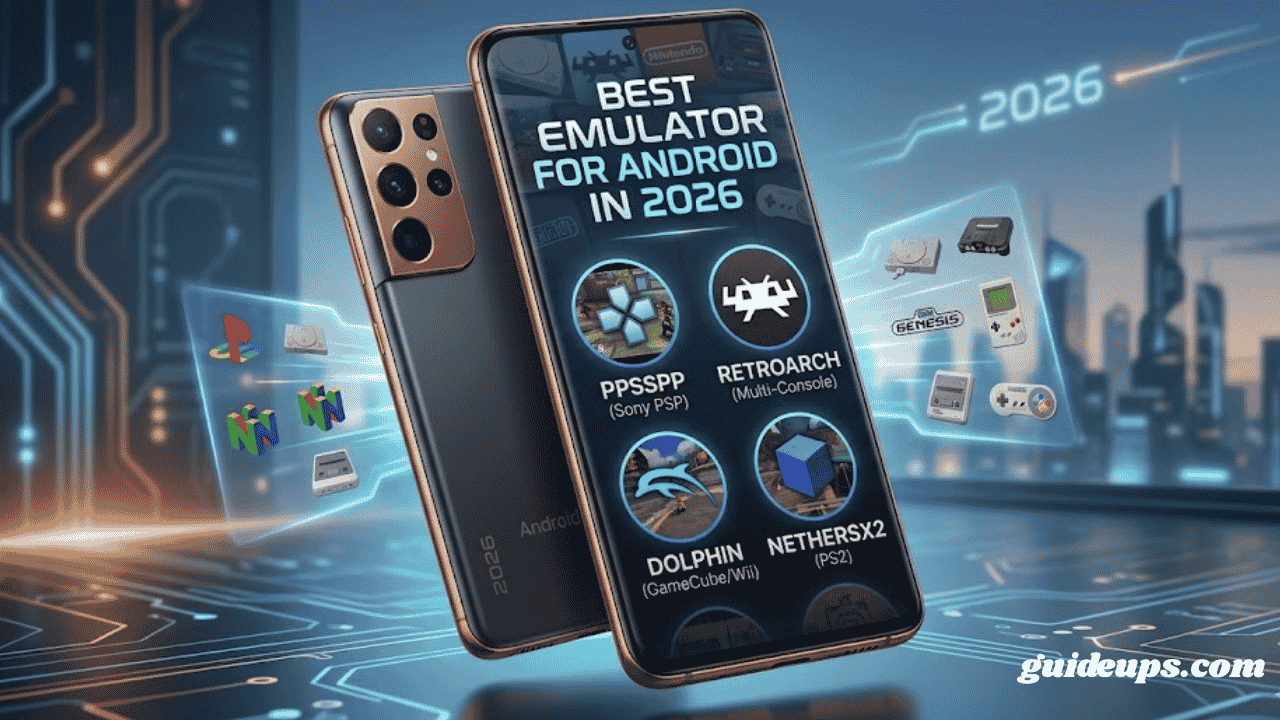
PPSSPP: The One That Just Works
If someone asks me to recommend a single emulator without knowing anything about their situation, I say PPSSPP every time.
It emulates the Sony PlayStation Portable, and it does it remarkably well. We are talking about a console that had genuinely great games: Tekken: Dark Resurrection, GTA: Liberty City Stories, Crisis Core: Final Fantasy VII, Monster Hunter Freedom Unite, and Naruto Shippuden: Ultimate Ninja Heroes. The PSP library is enormous, and a lot of it holds up today.
On the Redmi Note 12 (Snapdragon 4 Gen 1, 4GB RAM), PPSSPP ran God of War: Chains of Olympus at a locked 30 fps with the rendering resolution bumped up to 3x. The game actually looked better than it did on the original PSP hardware. My brother was genuinely shocked. He sat there for two hours without saying a word, which, if you knew him, is the highest possible compliment.
Setting It Up
- Download PPSSPP from the Google Play Store; there is a free version and a paid Gold version (about $5). The Gold version is identical in functionality; buying it is just a way to support the developer.
- Open PPSSPP. It will prompt you to find your game files. By default, it looks in your Downloads folder and a folder called PSP/GAME on your internal storage.
- Place your ISO or CSO game files into that PSP/GAME folder.
- Back in PPSSPP, tap the game to launch it.
The default settings are surprisingly good out of the box. If your phone is struggling, go to Settings → Graphics and lower the rendering resolution from 2x to 1x. That alone can double your frame rate on budget devices.
One Thing That Tripped Me Up
On the Tecno Camon 16 (Helio G85, 4GB RAM), God of War ran fine, but certain games with heavy particle effects like the summon animations in Final Fantasy Tactics: War of the Lions dropped to around 18 fps. Turning off Post-Processing Shaders in the graphics settings fixed it instantly. I spent twenty minutes assuming it was a hardware problem before finding that option.
RetroArch Powerful, But Be Patient With It
RetroArch is the Swiss Army knife of emulation. One app, dozens of emulated systems: NES, SNES, Game Boy, Game Boy Advance, PlayStation 1, Sega Genesis, Nintendo 64, and more. If PPSSPP is a dedicated specialist, RetroArch is a generalist that covers almost everything.
The catch: the first time you open RetroArch, it looks like the dashboard of a commercial aircraft. Nothing is immediately obvious. I closed it twice before committing to actually learning the interface.
Here is the short version of how to get started without losing your mind.
Setting Up RetroArch Step by Step
Step 1: Download RetroArch Get it from the Google Play Store or directly from retroarch.com. The Play Store version is the easiest to install.
Step 2: Download Cores In RetroArch, each system is emulated by a separate plugin called a “core.” You download only the ones you need.
- Go to Main Menu → Load Core → Download a Core
- For Game Boy Advance: download mGBA
- For SNES: download Snes9x
- For PlayStation 1: download Beetle PSX HW or PCSX ReARMed
- For Nintendo 64: download Mupen64Plus-Next
Step 3: Scan for Games Go to Import Content → Scan Directory and point RetroArch to the folder where your game files are stored. It will build a library automatically and match games to the correct systems.
Step 4: Launch a Game From your newly built library, tap the game. RetroArch will load the correct core automatically.
How It Performed
On the Samsung Galaxy A34 (Exynos 1280, 6GB RAM), RetroArch handled everything I threw at it up to PlayStation 1 without any real difficulty. GBA games ran perfectly. SNES was flawless. PS1 titles had occasional frame drops in heavy 3D scenes but nothing that made them unplayable.
Nintendo 64 was more mixed. Ocarina of Time ran well most of the time, but Majora’s Mask had regular slowdowns in certain areas. N64 emulation on Android has always been temperamental, and 2026 has not fully solved that.
The one system I would not recommend trying on a budget phone is PlayStation 2 through RetroArch. The AetherSX2 core exists, but the performance on anything below a Snapdragon 8-series is rough. More on PS2 separately below.
Delta: The Best Option for Nintendo Handhelds (If You Have It)
Delta is primarily an iOS emulator, but I am including it here because Android users keep asking about it and the situation has changed in 2026.
For Game Boy, Game Boy Color, Game Boy Advance, NES, SNES, Nintendo 64, and Nintendo DS, Delta is genuinely the most polished emulation experience available on mobile. The interface is clean, controller support is excellent, and it handles save states and fast-forward without any fuss.
On Android, your best equivalent is Delta’s spiritual cousin, the DraStic DS Emulator for Nintendo DS. Specifically, it is a paid app (around $5), but it is the best DS emulator on Android by a significant margin. If you want to play Pokémon games, Castlevania: Dawn of Sorrow, or The World Ends With You on Android, Drastic is worth every rupee.
For GBA on Android, My Boy! (free version available) or RetroArch with the mGBA core are both excellent choices.
Dolphin GameCube and Wii on Android (Yes, Really)
This one still feels slightly miraculous to me.
Dolphin is a GameCube and Wii emulator that now has an official Android build. I tested it on the Samsung Galaxy A34, and with the right settings, it ran Super Mario Sunshine at a mostly stable 30 fps.
It needs a decent phone. Anything below a Snapdragon 7-series or equivalent will struggle. But if your device can handle it, playing GameCube games on your phone in 2026 is a genuinely surreal experience.
Quick Setup for Dolphin on Android
- Download the Dolphin Emulator from the Google Play Store (official app, free)
- Open it and grant storage permissions when prompted
- Tap the folder icon to add a game directory; point it to where your GameCube ISO files are stored
- Tap a game to launch
For GameCube games, go to Settings → Graphics → Backend and select Vulkan instead of OpenGL. On most modern Android phones, Vulkan performs noticeably better. I saw about a 15 fps improvement on the A34 by switching this one setting.
Do not expect Wii games to run as well as GameCube titles. Wii emulation is more demanding, and most mid-range Android phones in 2026 are still not quite there for stable Wii performance.
AetherSX2 / NetherSX2: PlayStation 2 on Android
PlayStation 2 emulation on Android is possible but honest about its demands.
AetherSX2 was the leading PS2 emulator for Android for years. Development officially stopped, but a community fork called NetherSX2 continues to receive updates and is what most people use now. You can find the APK through the NetherSX2 GitHub page; it requires sideloading since it is not on the Play Store.
On the Samsung Galaxy A34, Grand Theft Auto: San Andreas ran at roughly 35–45 fps with occasional dips. Playable, but not perfectly smooth. Shadow of the Colossus was technically running around 20–25 fps, but it was not the experience the game deserves.
If your phone has a Snapdragon 8 Gen 2 or newer, PS2 emulation becomes genuinely good. On anything below that, temper your expectations.
Mistakes I Made (So You Do Not Have To)
Downloading random BIOS files from sketchy sites. Several emulators, especially PS1 and PS2 emulators, require BIOS files from the original hardware. I grabbed the first result from a Google search and ended up with a corrupted file that caused constant crashes. Get BIOS files from trusted community sources or, ideally, dump them from hardware you own.
Ignoring the Vulkan vs. OpenGL setting. Most emulators default to OpenGL for compatibility. Switching to Vulkan in the graphics settings improved performance significantly on every device I tested. Try it first, and only switch back to OpenGL if something breaks.
Using a phone case while emulating. This sounds absurd but hear me out. Emulation pushes your phone’s processor hard, which generates heat. A case that traps heat will throttle your phone’s performance after ten or fifteen minutes. I tested PPSSPP with and without a case on the Redmi Note 12 and saw a consistent 8–10 fps difference after prolonged sessions. Take the case off, or at least a back-venting one.
Not setting up a Bluetooth controller first. Touch controls on emulators work, but they are genuinely painful for most action games. A cheap Bluetooth gamepad, the GameSir T4 Mini, costs around Rs 3,000 to Rs 4,000 and connects instantly, transforming the experience. Most emulators auto-detect controllers and map buttons correctly. Set this up before your first session, not after an hour of frustrating touch inputs.
Which Emulator Should You Actually Download?
Here is the short version based on what you want to play:
PSP games → PPSSPP. No competition. Download it right now.
GBA, SNES, NES, Game Boy, PS1 → RetroArch with the relevant cores. Takes thirty minutes to set up properly; worth it for the all-in-one convenience.
Nintendo DS → DraStic DS Emulator. Worth the purchase.
GameCube → Dolphin, provided your phone has a mid-range or better processor.
PlayStation 2 → NetherSX2, but only if your phone is reasonably powerful. Snapdragon 7-series minimum for a decent experience.
Nintendo 64 → RetroArch with Mupen64Plus-Next, but expect some games to be rough.
Final Thoughts
Three weeks after that first conversation with my brother, he finished God of War: Chains of Olympus on his Redmi Note 12 using PPSSPP. He texted me a screenshot of the credits rolling with a single message: “Bro, this phone is better than the PSP was.”
That is genuinely what good emulation feels like in 2026: not just playable, but better than the original in some cases. Higher resolutions, faster loading, save states anywhere you want, and a controller in your pocket.
Start with PPSSPP if you are new to this. It is the most forgiving, the best documented, and the library of PSP games alone will keep you busy for months. Once you are comfortable, RetroArch opens up everything else.
And get a Bluetooth controller. Seriously. Your thumbs will thank you.
More Update: GUIDEUPS